

Adding a dimension
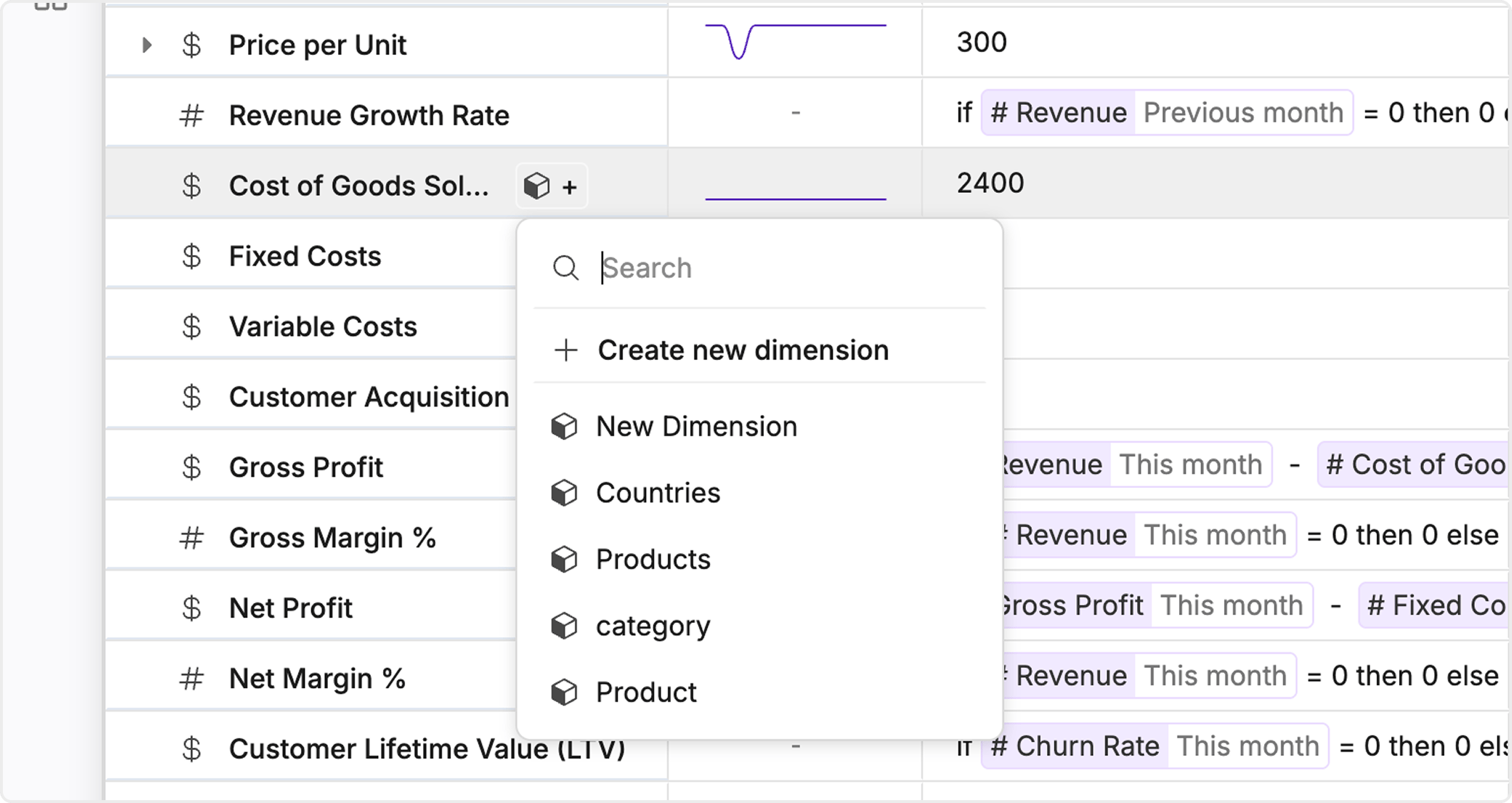
Working with dimensions
Creating and linking dimensions Dimensions help you organize and structure your data in Oculon so you can analyze and break down information more easily. Whether you work with departments, teams, or products, dimensions keep that structure consistent. Here is how to set them up.Creating dimensions
Create a dimension from the library Click Create dimension, enter a dimension name, and start adding dimension values.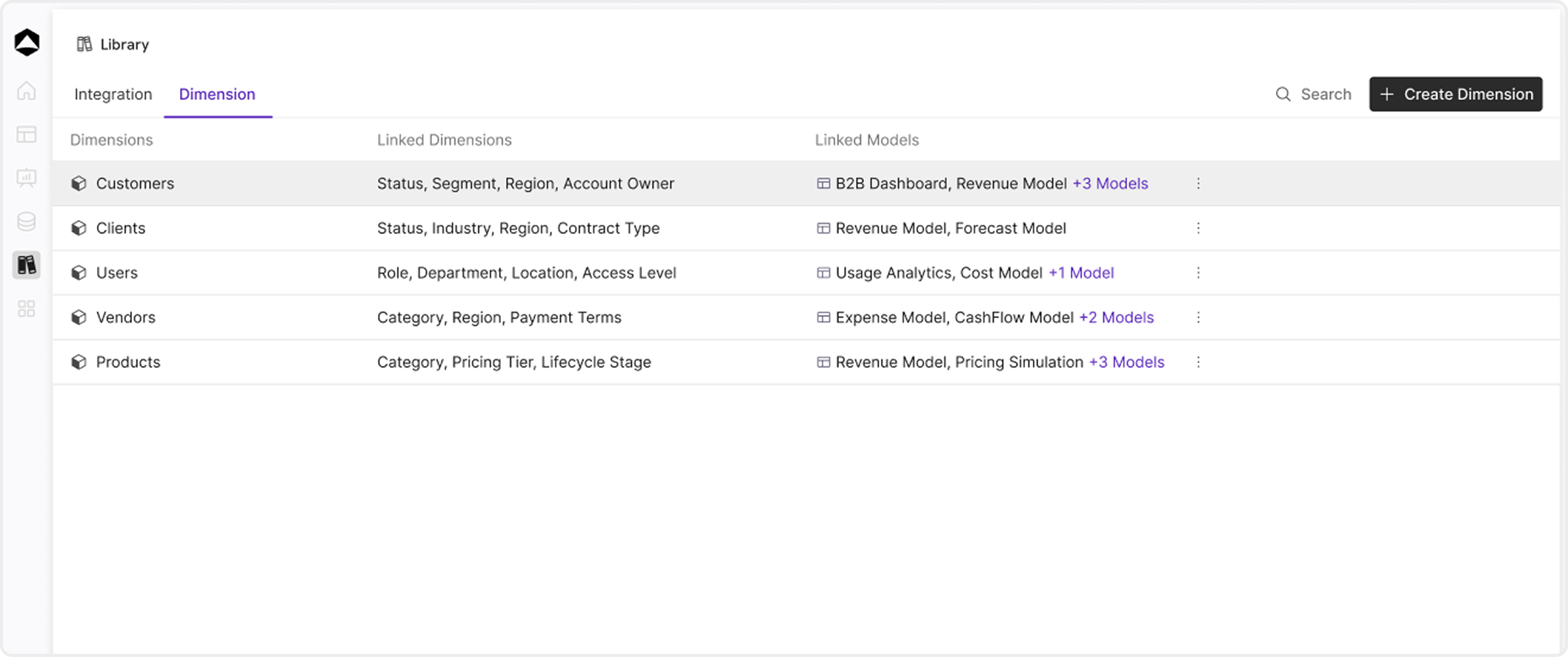
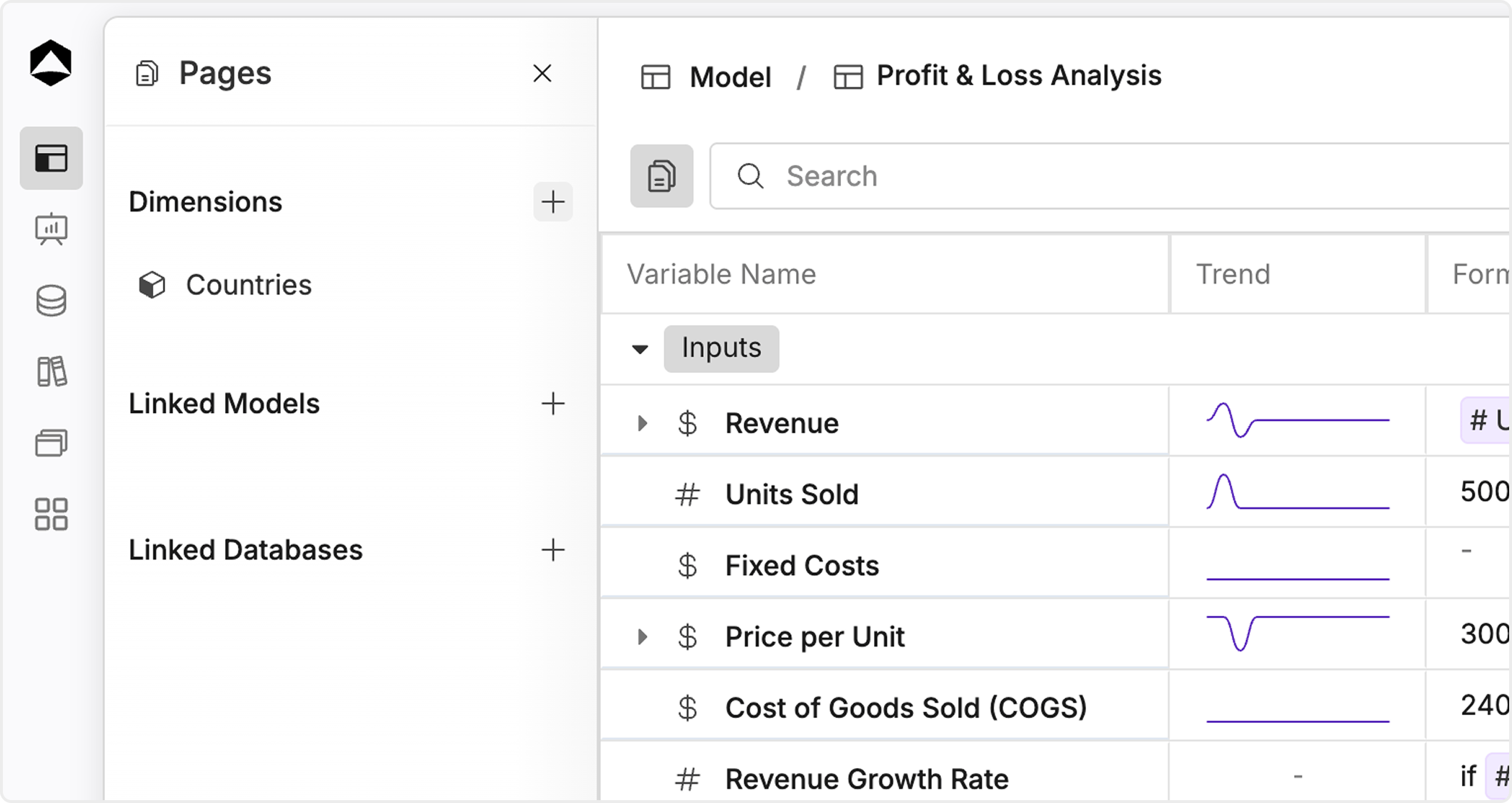
Dimension breakdowns
Dimension breakdowns let you divide a variable by items such as Departments, Regions, or Products so the same metric is more detailed and easier to act on. You set a formula once at the total; it applies to every dimension item automatically.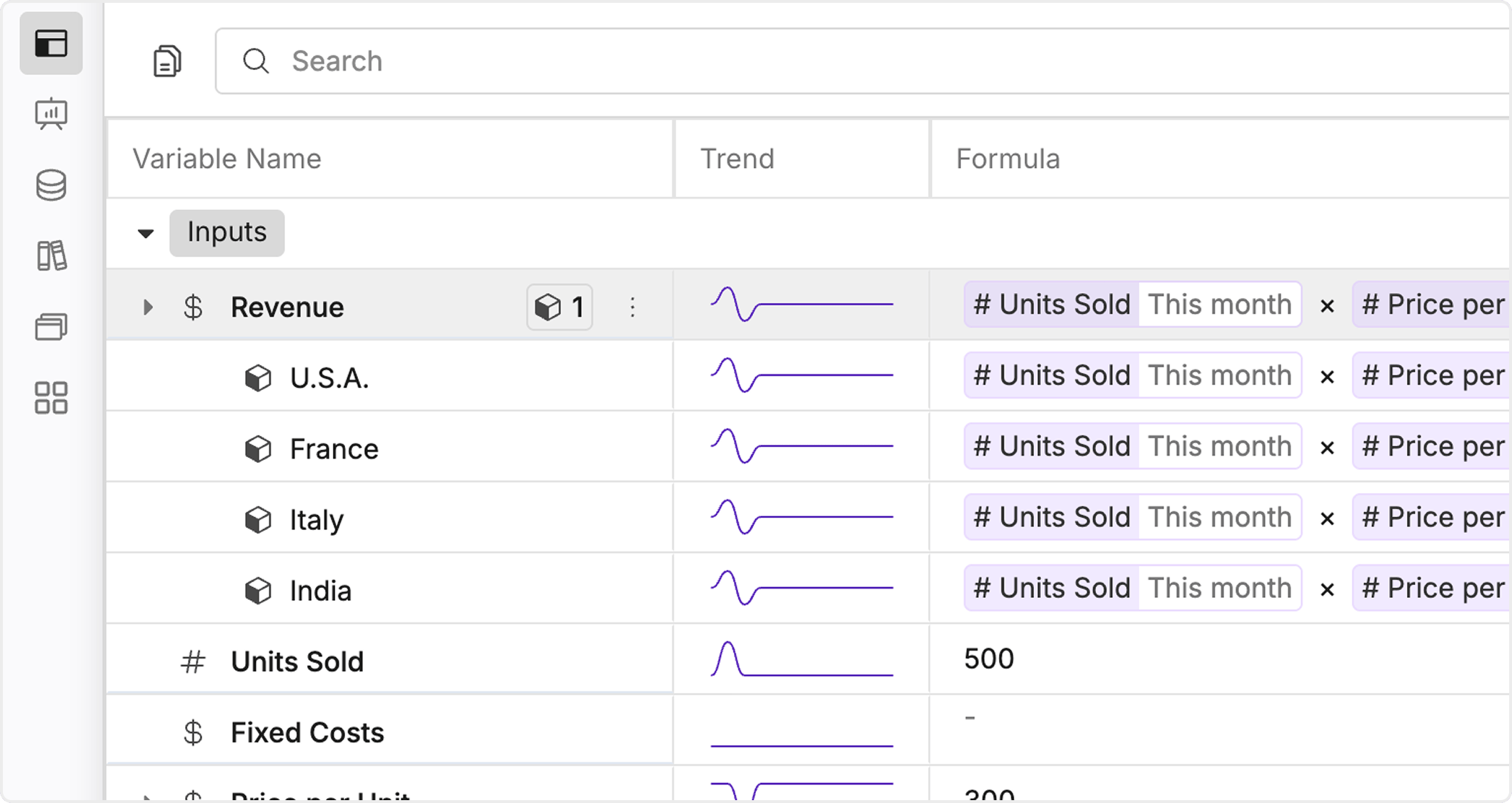
- Click a variable and open Dimensions.
- Choose a dimension (e.g. Region). The variable breaks into multiple items (e.g. Asia, Europe, North America).
- Add a formula on the top (aggregate) row of the variable.
- That formula is applied to all dimension items—you do not need to copy and paste it for each row.