

- Manual Database → Create and manage a database directly within Oculon
- From Integration (Query-based) → Create a database by pulling data from an external source using a query
Creating a Database
1. Create Manually
Use this when you want to define and manage your own data structure within Oculon.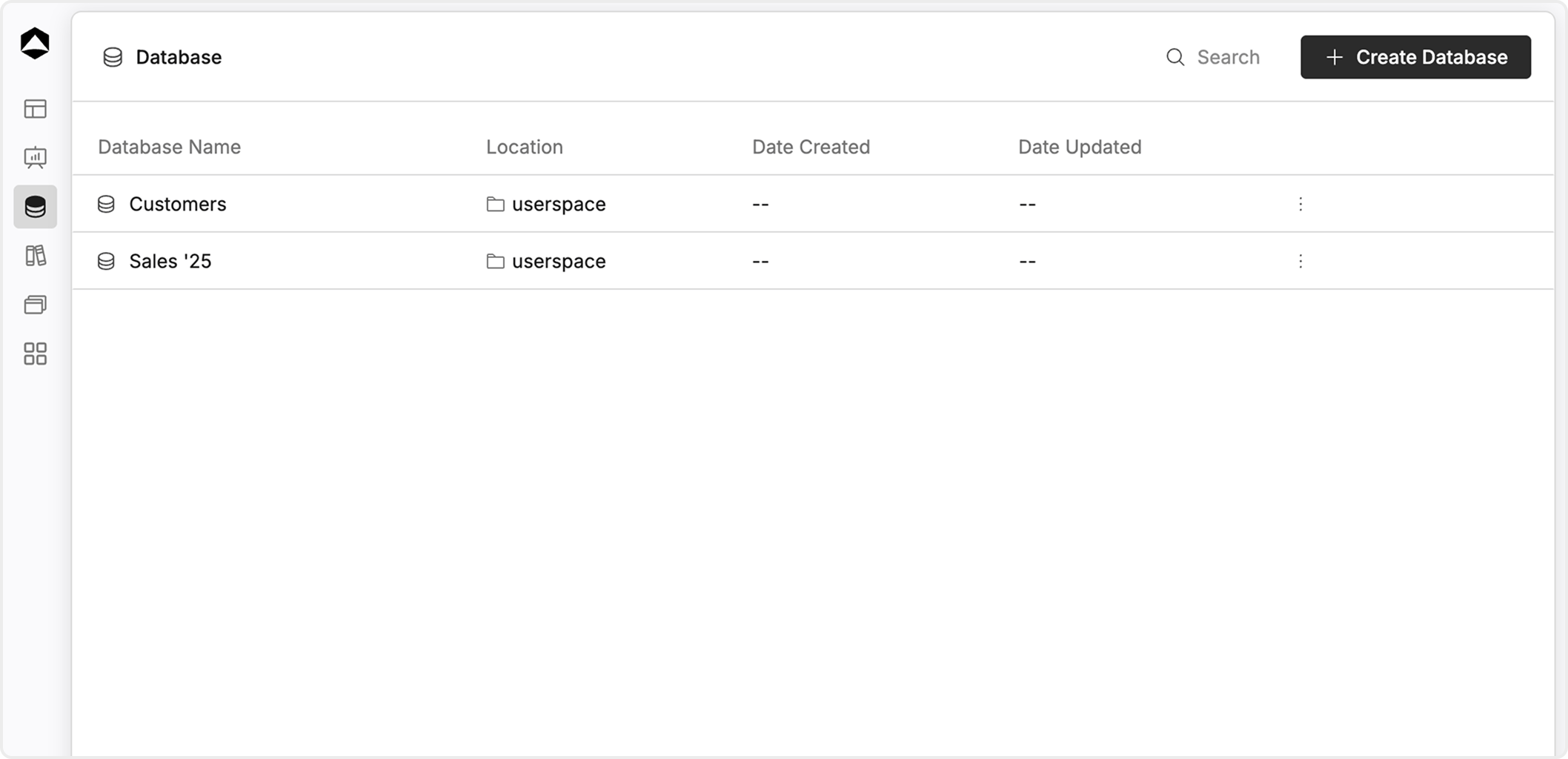
- Navigate to the Database section
- Click New Database
- Enter a name
- Configure columns and permissions (add, edit, or remove fields)
- Click Create
2. Create from Integration (Query)
Use this when your data comes from external tools like CRMs, warehouses, or spreadsheets.- Go to the Integrations section
- Create a query to fetch data
- Run the query
Managing Connections
For databases created via integrations, you can monitor and manage the connection directly from the database view.Connection Status
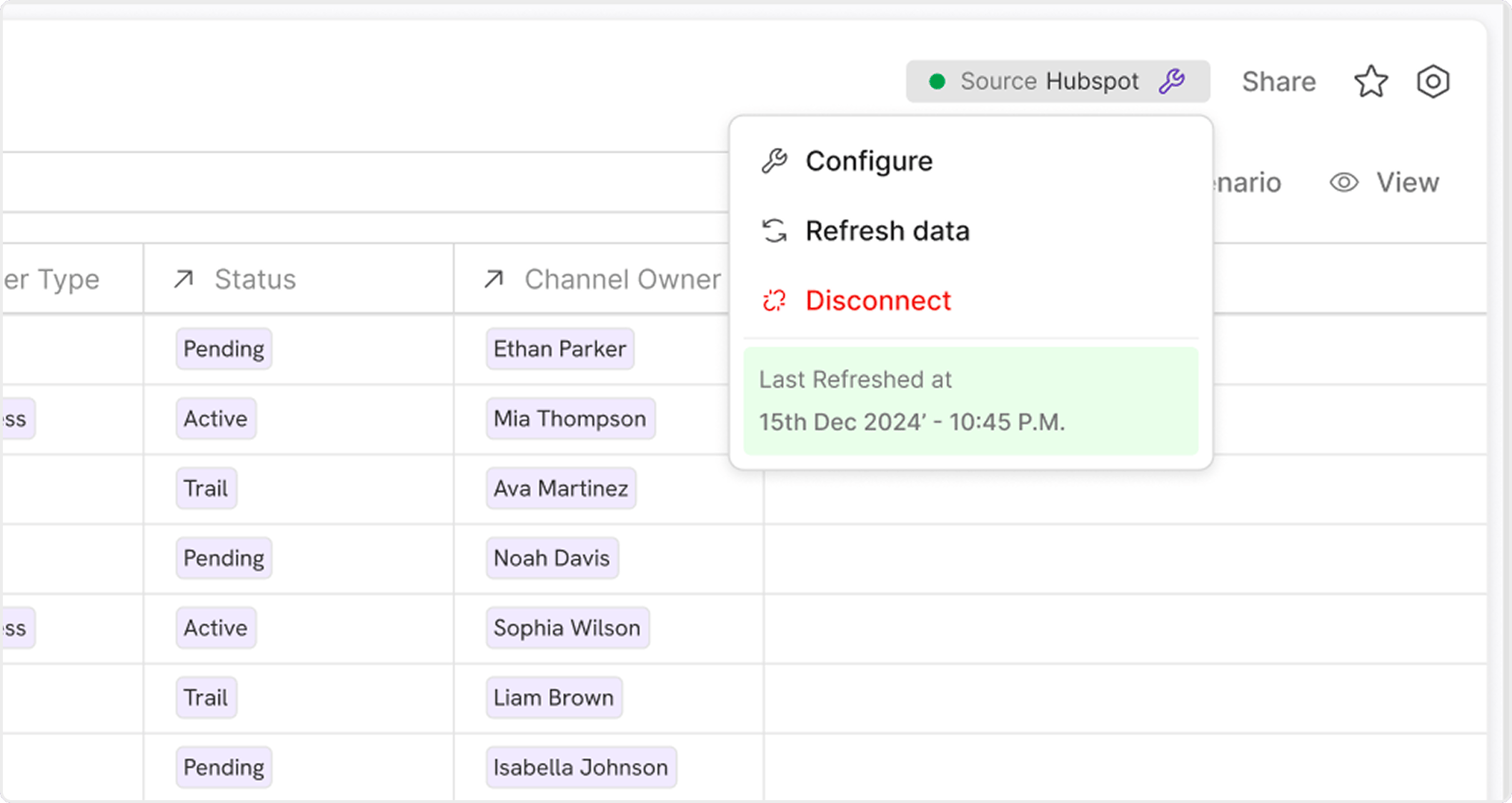
- 🟢 Active (Green) → Data is connected and syncing normally
- 🟡 Warning (Yellow) → Connected, but there may be sync issues or delays
- 🔴 Disconnected (Red) → Connection is broken and data is not syncing
- The source (e.g., HubSpot)
- The last refreshed time, indicating when data was last synced
-
Configure
Update connection details such as source settings, or query configuration -
Refresh Data
Manually trigger a sync to fetch the latest data from the source
Configure database
You can explore and work with your data configuration directly within the database.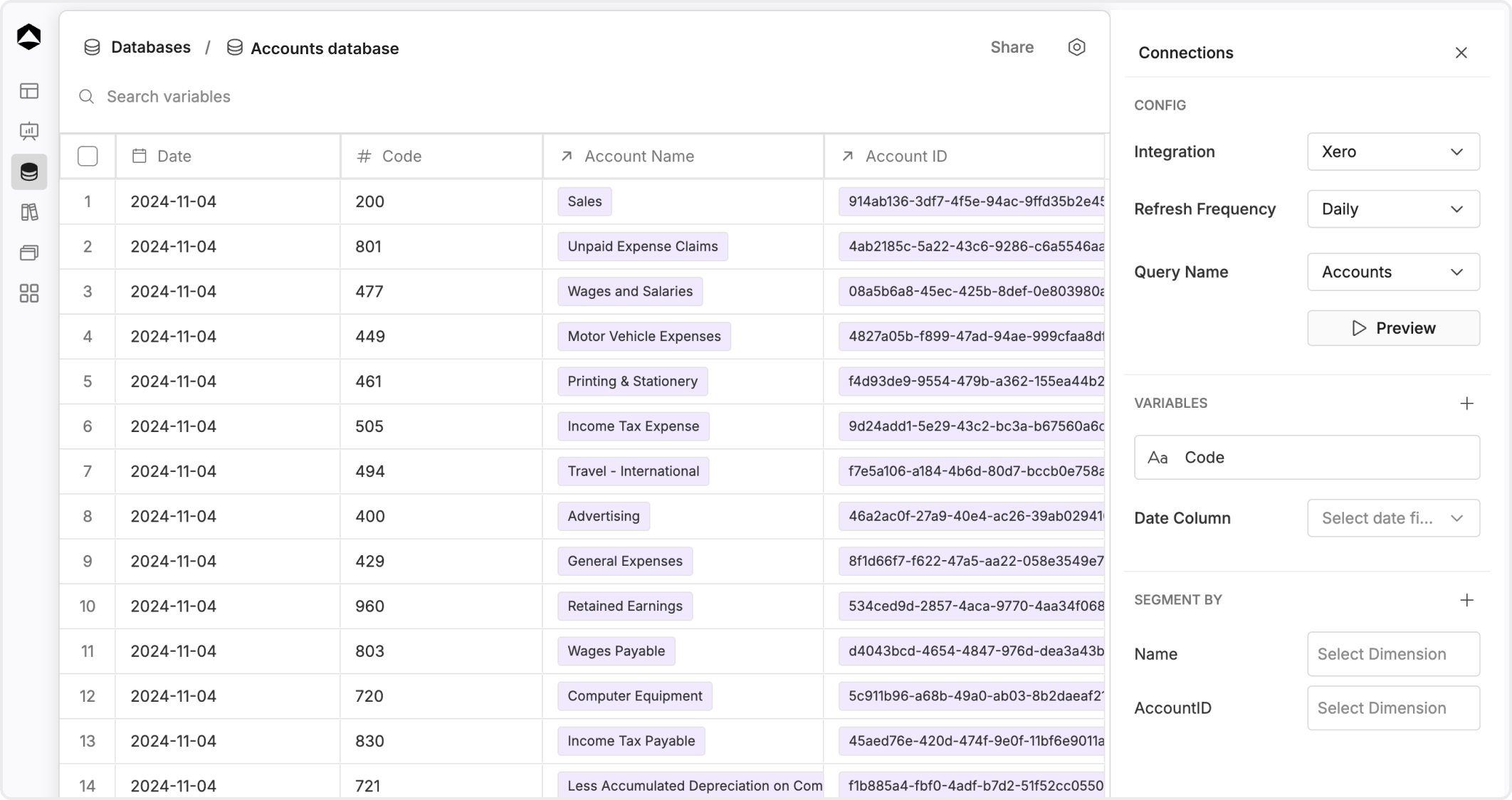
Configuration
Use the panel to control how your database works and how data is structured.- Integration & Query → Select data source and query
- Refresh Frequency → Set how often data syncs
- Preview → Validate data before saving
- Variables → Define and map database columns
- Date Column → Enable time-based analysis
- Segment By → Map fields to dimensions for grouping
- Click Save to apply changes
- Database refreshes with the new configuration