

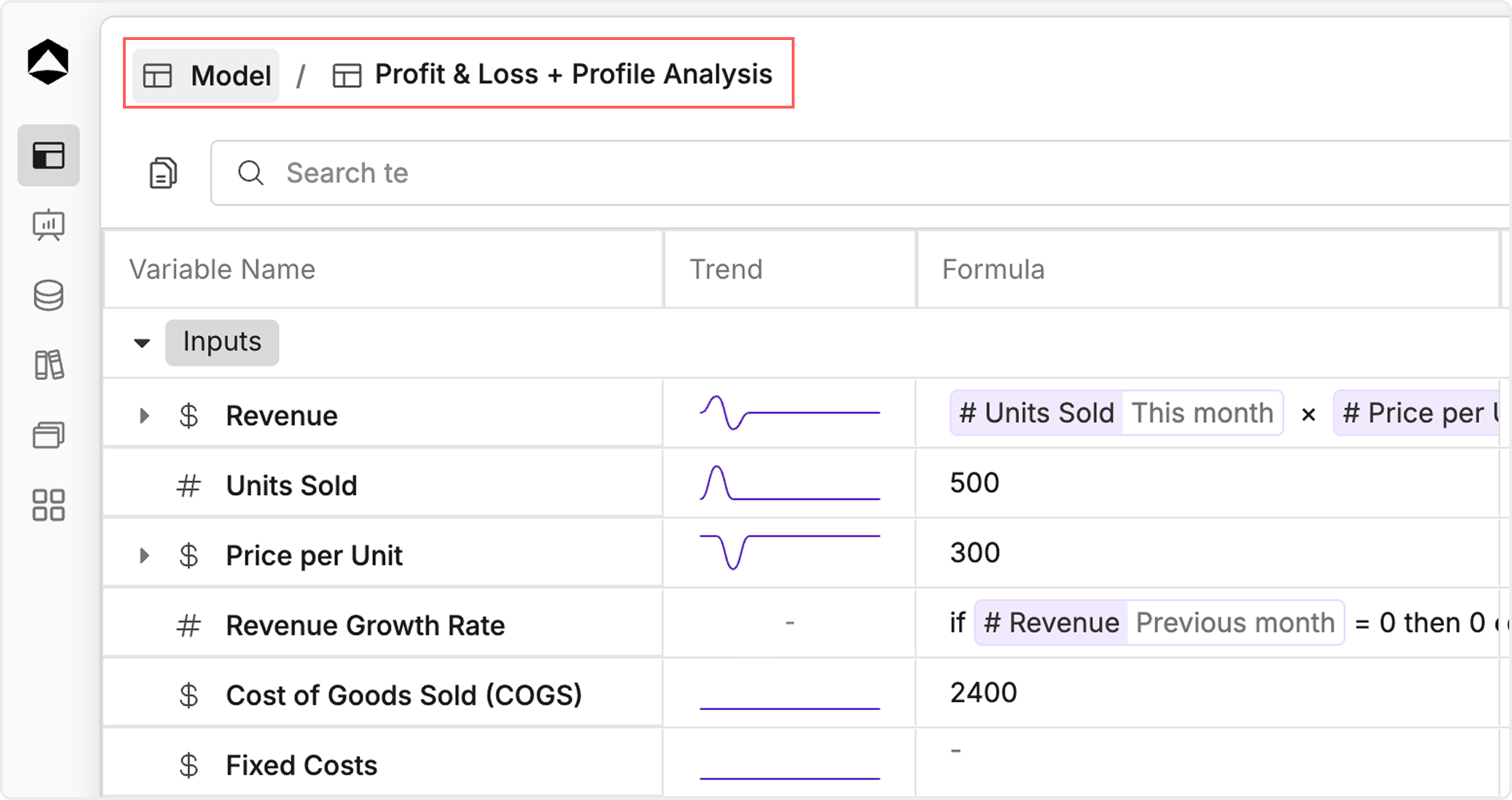
- Tip: Use the breadcrumbs to navigate back instead of using your browser’s back button, as this preserves your position within Oculon AI.
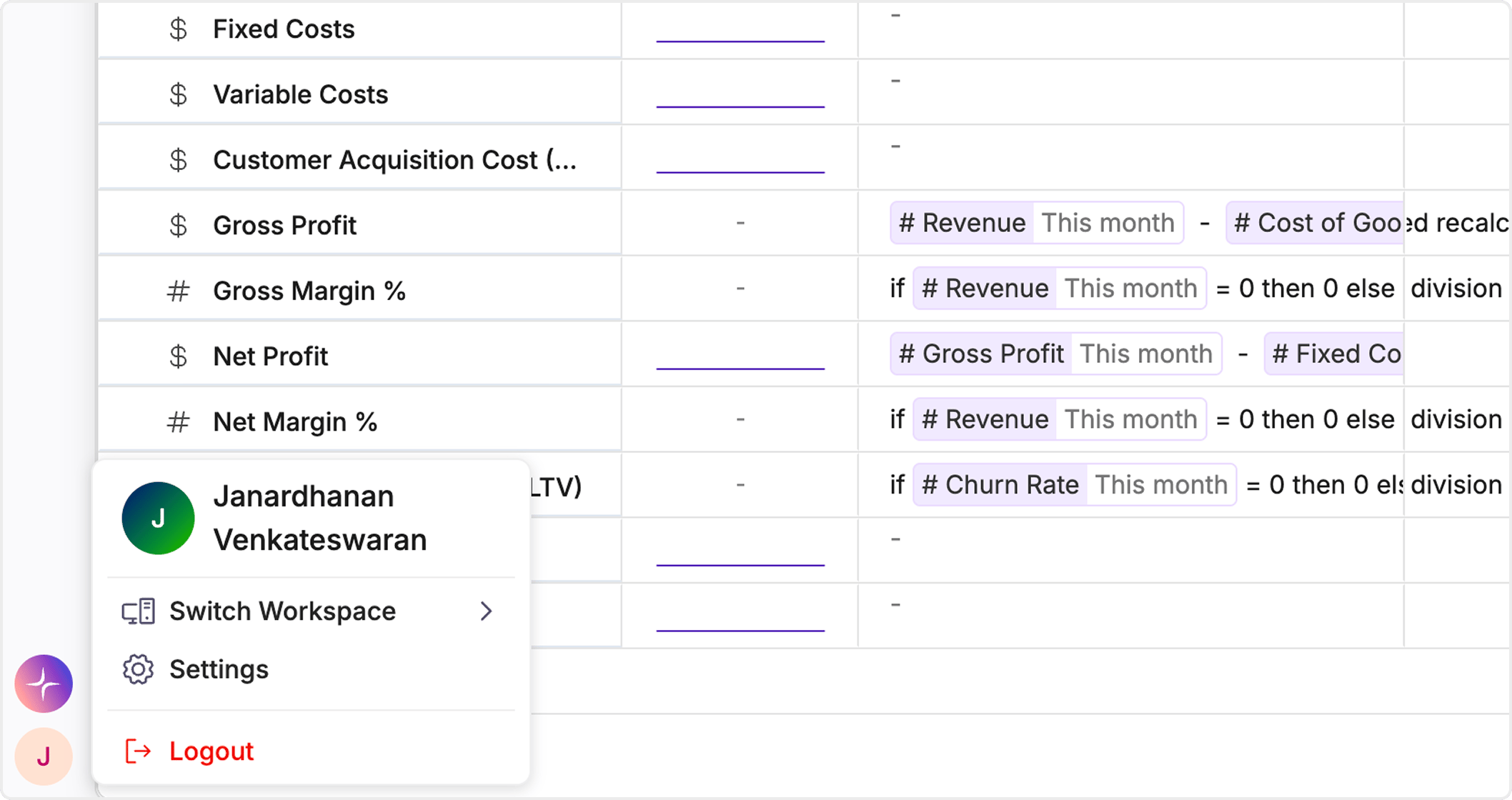
- My Profile: View and edit your profile information.
- User Settings: Update your profile picture, change your password, and adjust notification preferences.
- Sign Out: Log out of your Oculon AI account.
Left Sidebar Navigation
The Left Sidebar provides access to Oculon AI’s main sections, enabling you to explore and manage models, dashboards, templates, and more. Your sidebar options depend on your role and permissions within Oculon AI and the modules your organization subscribes to. Sidebar Items:- Collapse Menu: Click this button at the top of the sidebar to show or hide menu item names, making it easier to manage your screen space.
- Profile: Access your profile directly, allowing you to complete forms, view role-based information, or make updates as needed.
- Model Studio: The central workspace for creating, exploring, and analysing your models.
- How to Use: Click Model Studio to view a list of models you have access to or create a new one. You can open a specific model, review key data, or make edits.
- Dashboards: View and manage data visualizations and charts.
- How to Use: Dashboards allow you to track and analyse metrics across models. Click Dashboards to view existing charts or create new ones, giving you an overview of performance metrics and key insights.
- Templates: Access pre-built templates for a variety of financial models, designed to help you get started quickly.
- Tip: Use templates to jump-start model creation by choosing ones that closely match your needs. You can modify any template to fit your organization’s data.
- Library: Access a comprehensive library of metrics and formulas.
- How to Use: In Libraries, you can browse and select commonly used metrics or formulas, such as KPIs and financial equations, to apply directly within your models.
- Database: Create, View and perform other actions with database to analyse the data you want in the way you want.
- You can create database from running a query after integrating your tool.
- You can share your Database with your team members.
- You can edit and manipulate database with according to your needs.