

Accessing Teamspaces
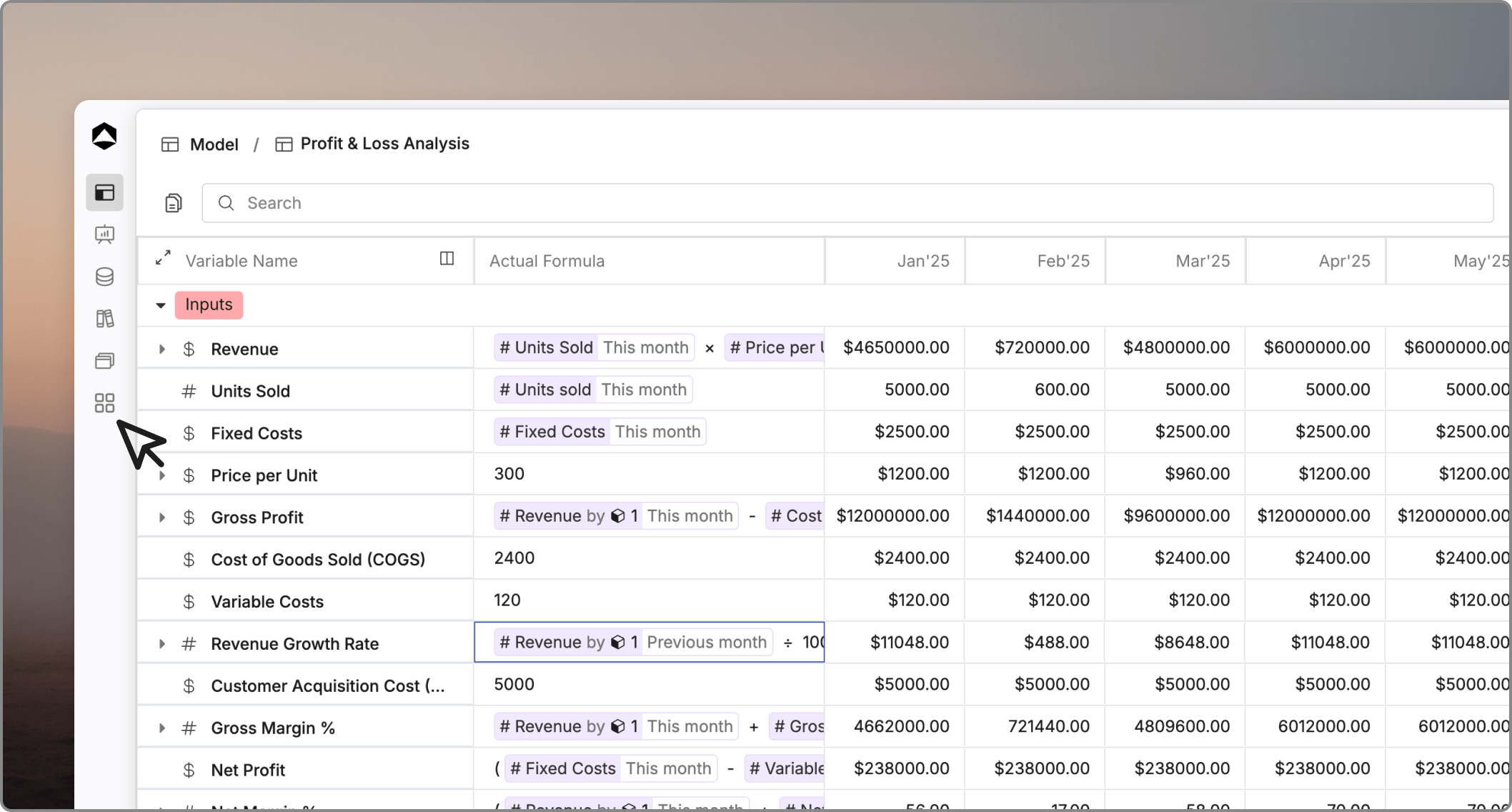
- the left navigation bar
- collapsed state → click the grid icon
- expanded state → under Spaces
- the profile menu → Switch workspace / space
Why Teamspaces matter
Teamspaces help you:- separate planning areas (e.g., Finance, RevOps, Sales)
- control access to sensitive models (budgets, forecasts)
- avoid clutter and duplicate work
- create a clear ownership structure
- Finance → budgeting, forecasting, actuals
- Revenue / GTM → pipeline, ARR, CAC models
- Executive → dashboards and reporting
- Scenario planning → what-if and simulations
Creating a Teamspace
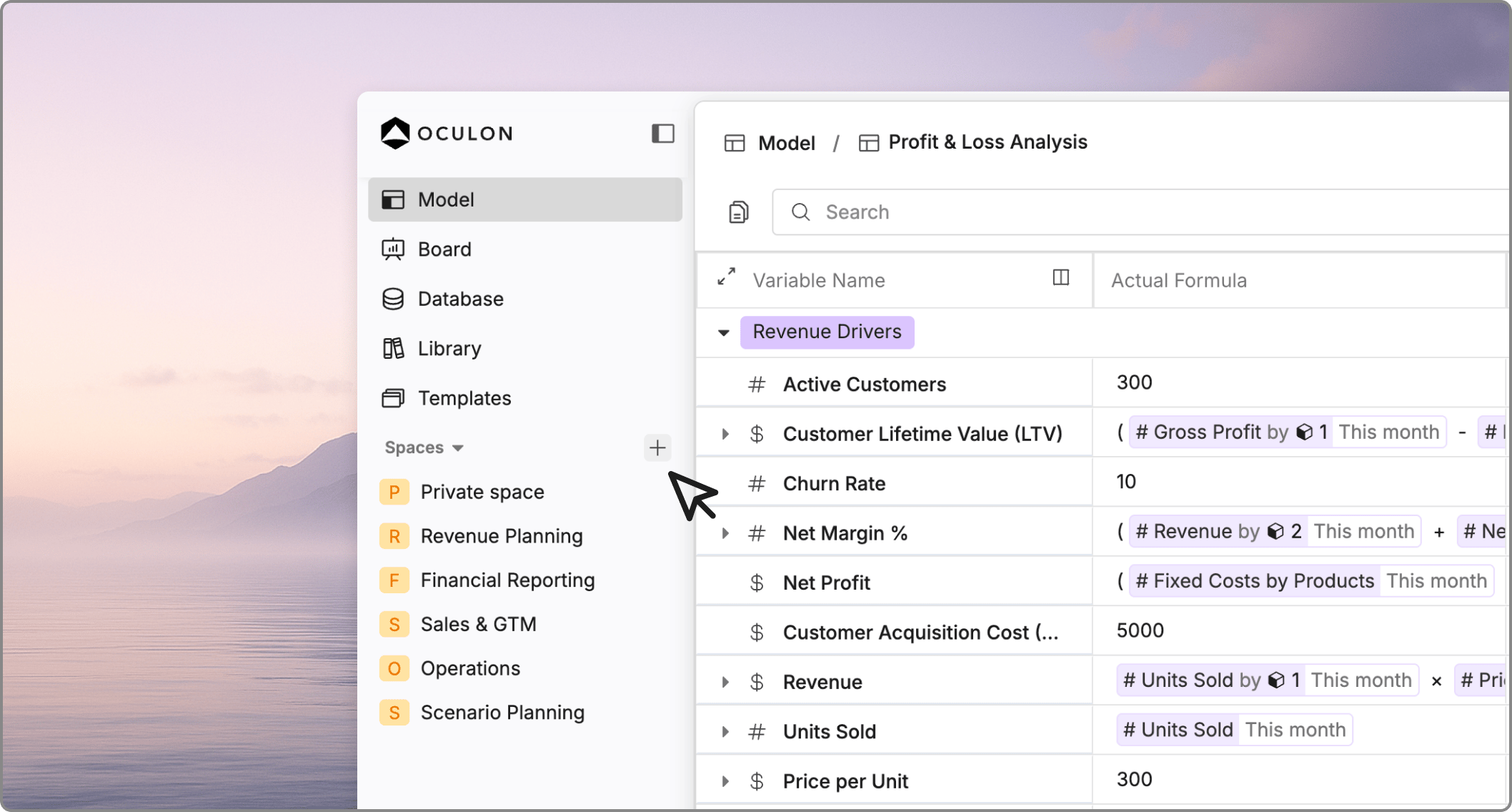
- Click + next to Spaces
- Enter:
- Teamspace name
- Description
- Join permission
- Open → anyone can join
- Closed → invite only
- Click Create
Managing Teamspaces
Open a teamspace and use the ••• (more options) menu to access settings. Teamspace settings are organized into three main tabs:- General → basic settings, permissions, and lifecycle actions
- Members → manage users and roles
- Security → control who can perform critical actions
General
General settings
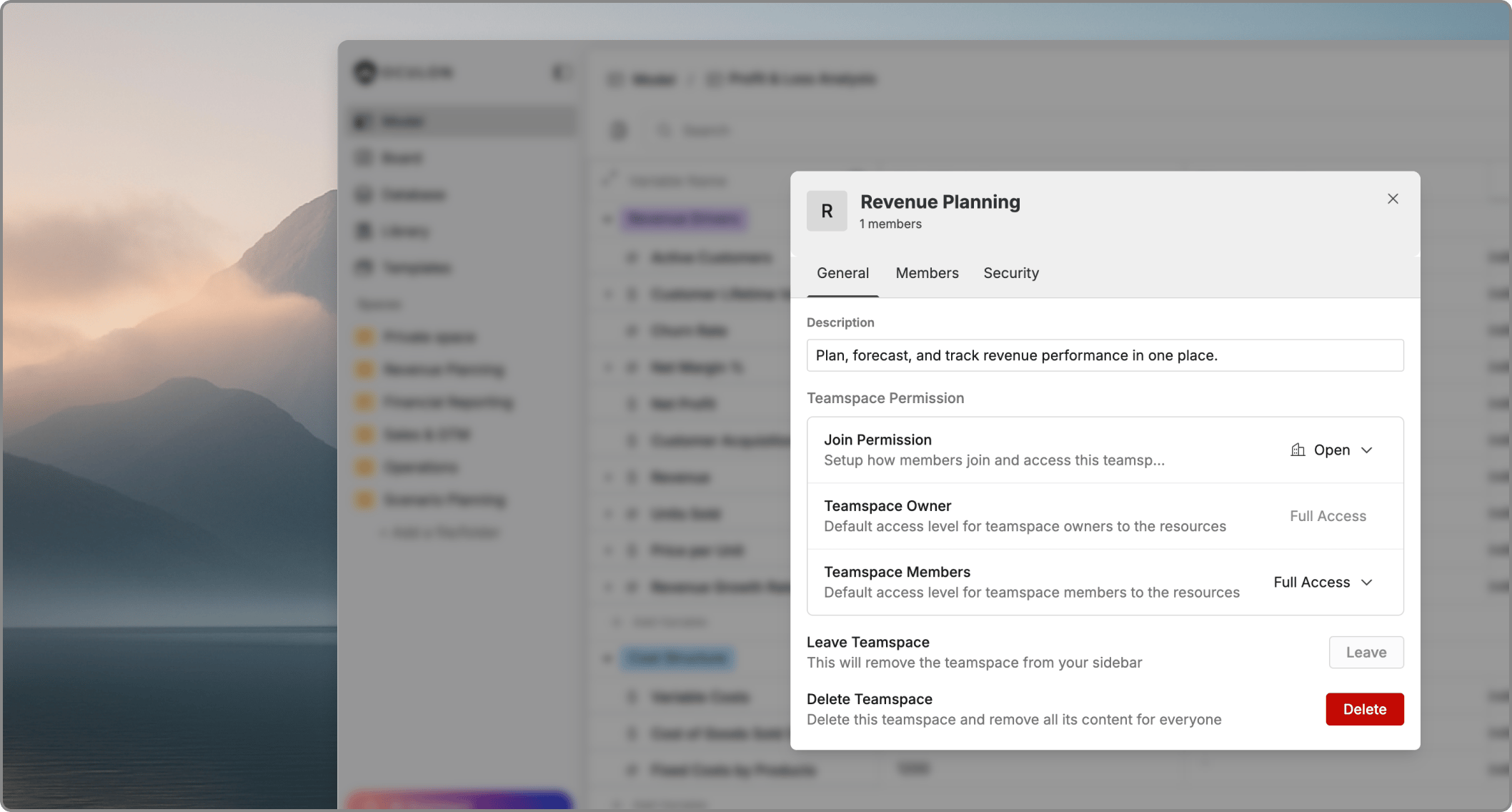
- Update name and description
- Change join permissions (open / closed)
Permissions & access
Teamspaces allow you to define what different roles can do.Roles
- Teamspace Owner → full control
- Teamspace Member → access based on permissions
Access levels
You can configure:- View → read-only
- Edit → modify content
- Full access → manage content and settings
Leaving or deleting a Teamspace
- Leave teamspace - Removes it from your sidebar
- Delete teamspace - Permanently deletes all content
Note:
You cannot leave a teamspace if you are the only member.
Add another member first—ownership will be reassigned if needed.
Members
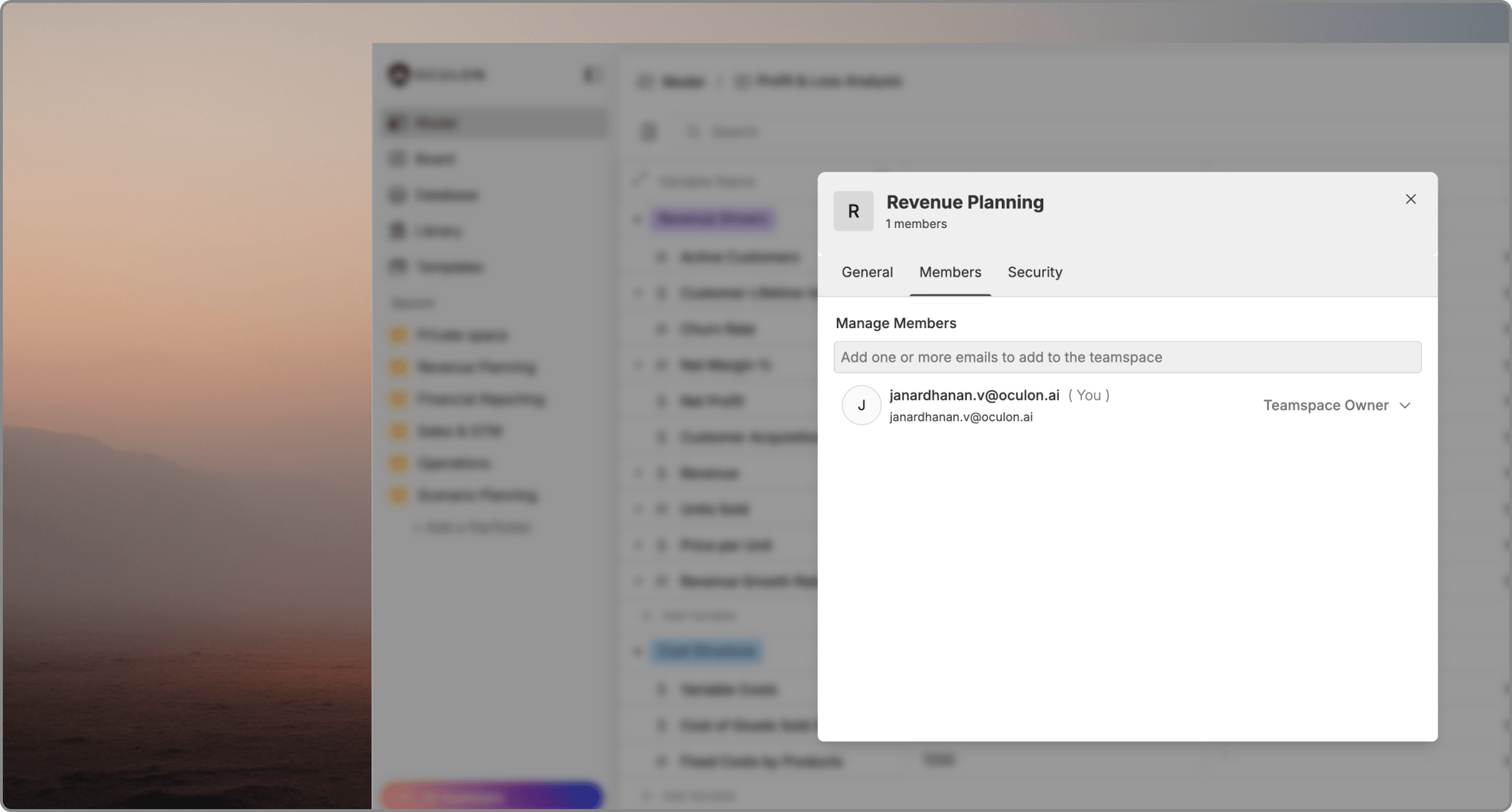
- Add users from the workspace
- Assign roles:
- Owner
- Member
- Control who has access to the teamspace
Security
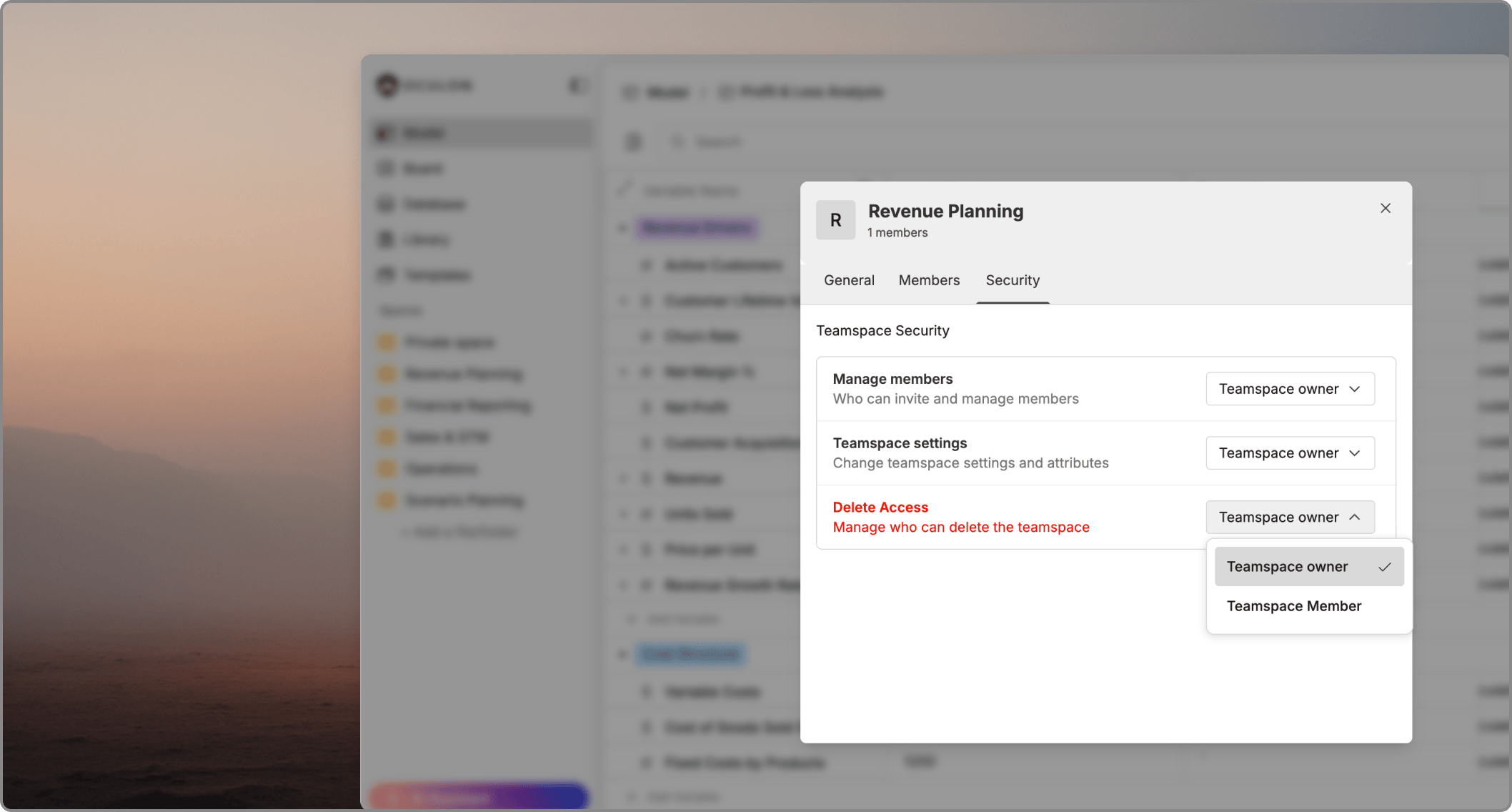
- Who can invite and manage members
- Who can change teamspace settings
- Who can delete the teamspace
Best practices
- Organize by function, not temporary projects
(e.g., “Finance” instead of “Q2 Planning Temp”) - Keep sensitive models in restricted teamspaces
- Use folders inside teamspaces for structured workflows
- Avoid frequent restructuring to maintain a single source of truth